Orris VPN for Android
You install the app as an APK file from our website, and it updates itself after that. It takes a couple of minutes and one install permission.
infoAndroid 8.0 or later · also works on Android TV
Installation
- 1
Download the APK
Open this page on your phone and tap «Download APK». If the browser warns about the file type, confirm the download.
Download APK - 2
Open the file
Tap the download notification or find the file in the Downloads folder.
- 3
Allow the install
Android asks for permission to install from this source. Tap «Settings», turn on «Allow from this source» and go back. The wording differs slightly between phone makers.
- 4
Install
Tap «Install». If Google Play Protect says the app is unverified, that's because it isn't from Google Play: tap «More details» → «Install anyway».
First sign-in
Your subscription is tied to your account: sign in the same way as on the website or in the bot. No subscription link needed.
- 1
Sign in
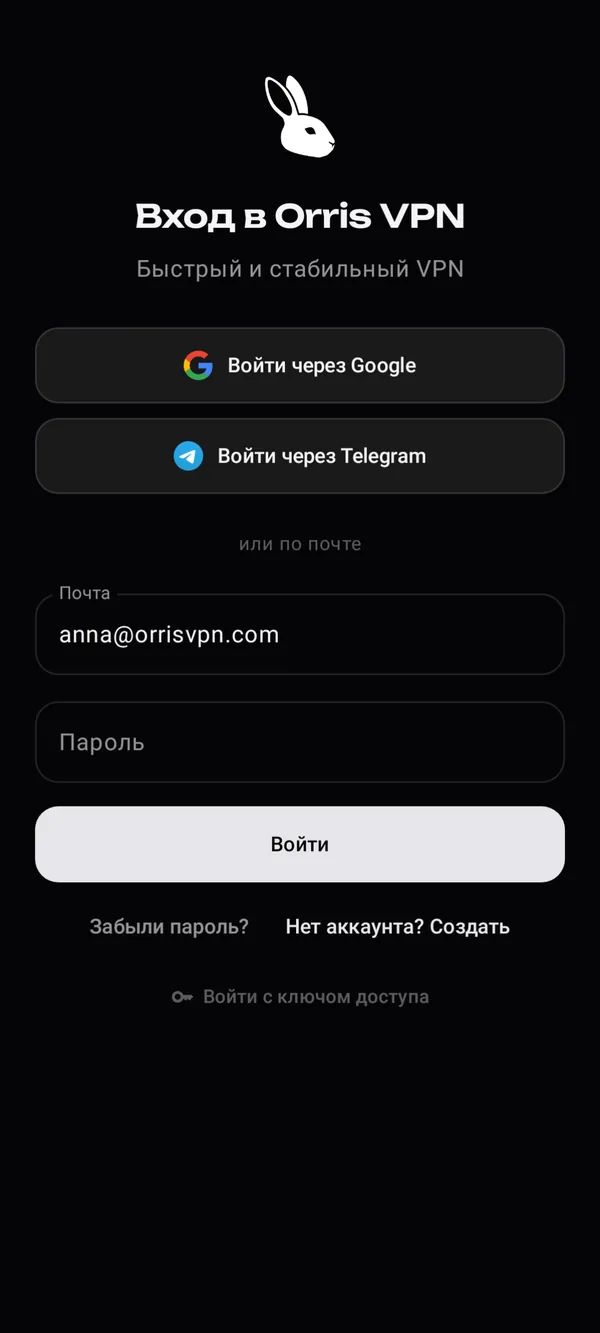
On the «Sign in to Orris VPN» screen, pick a way to sign in:
- «Continue with Google»;
- «Continue with Telegram» — the bot opens, tap «Start» there;
- email and password — the «Sign in» button;
- «Sign in with passkey».
infoNo account yet? Tap «No account? Create one». Forgot your password? Tap «Forgot password?» and a reset code arrives by email.
- 2
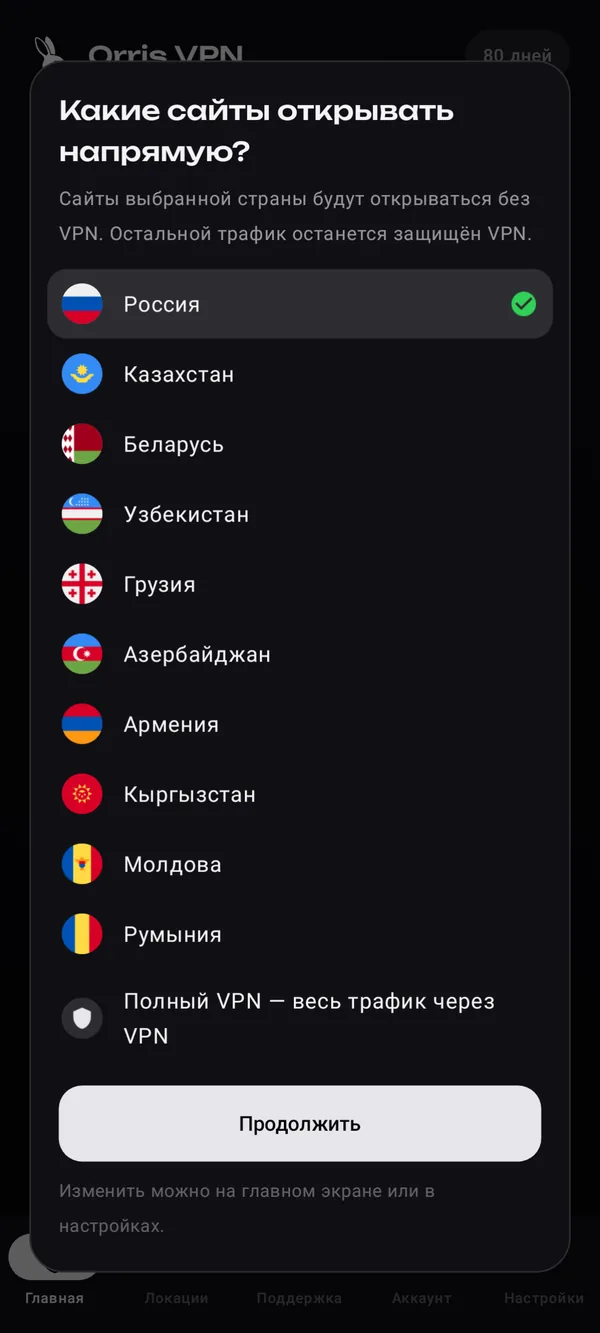
Which sites should open directly?
After you sign in, the app asks which country's sites should open without the VPN. Pick your country or «Full VPN», then tap «Continue». You can change it later on the home screen or in settings.
Connecting
- 1
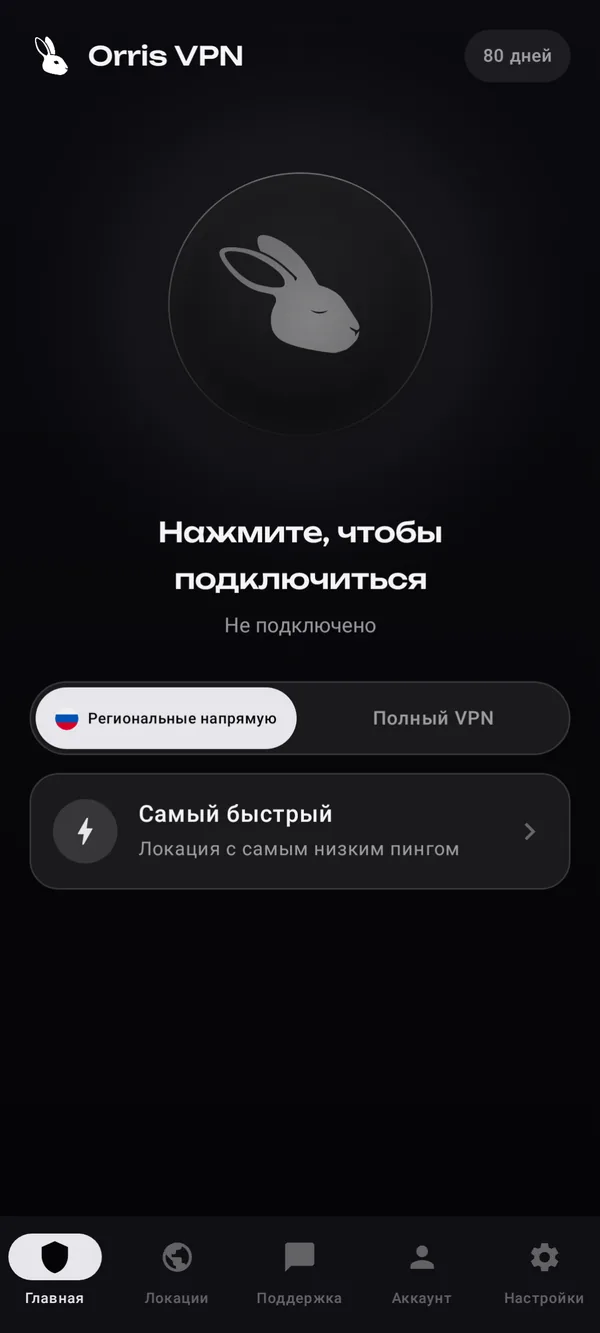
Tap the connect button
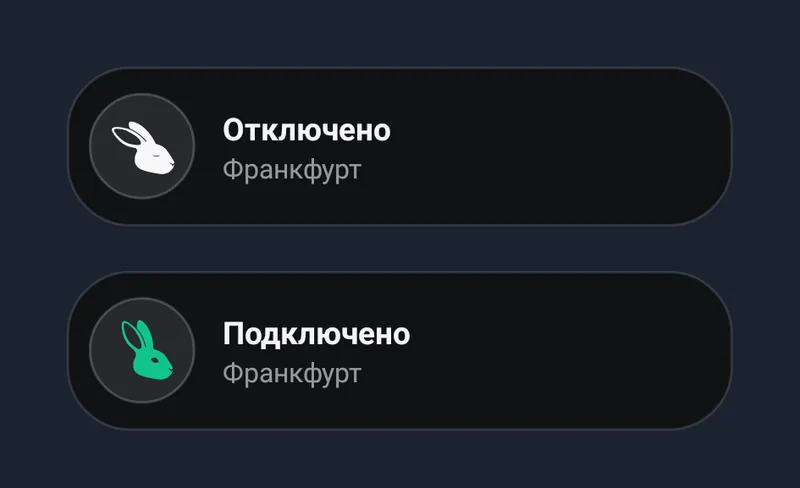
The round rabbit button on the «Home» tab. Below it you see the status: «Tap to connect», «Connecting…», «Traffic protected».
- 2
Allow the VPN connection
On the first connection, Android shows a system VPN connection request — tap «OK». You only do this once.
- 3
Allow notifications
On Android 13 and later, the app asks about notifications. Allow them: while the VPN is on, the notification shade shows the status, the server and a «Disconnect» button.
- 4
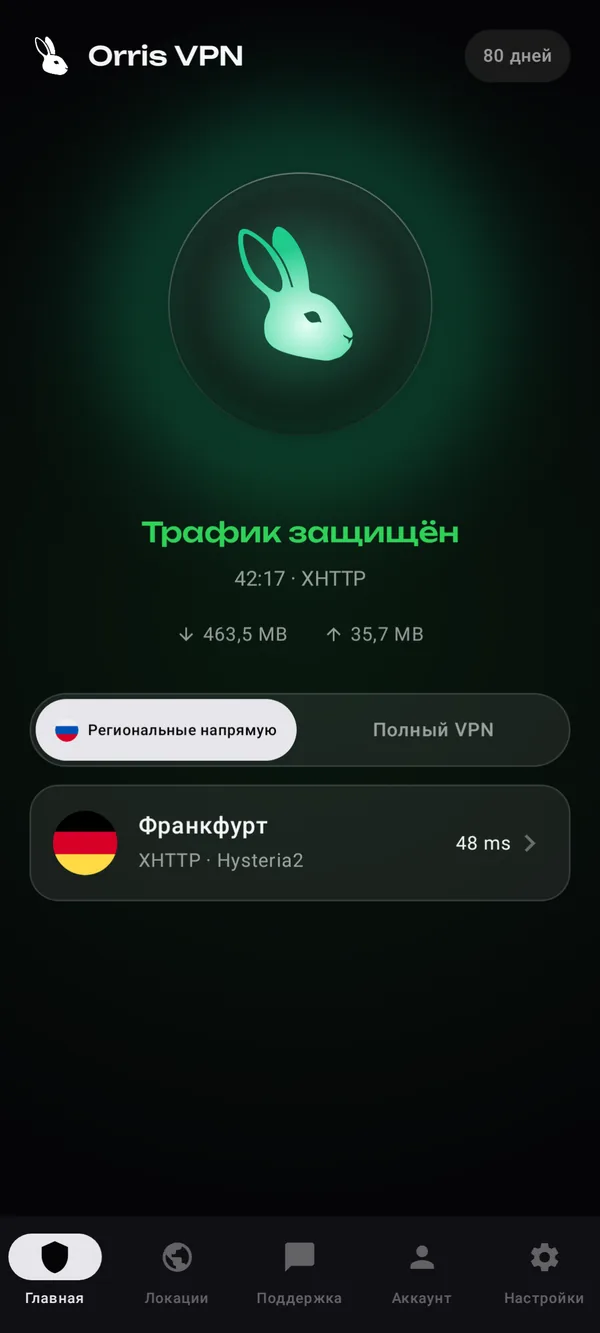
Done
The status shows «Traffic protected», with the session time, server and traffic below. Disconnect with the same button, from the notification or with the quick settings tile.
Choosing a server
The server list comes from your subscription and updates by itself.
- 1
Open «Locations»
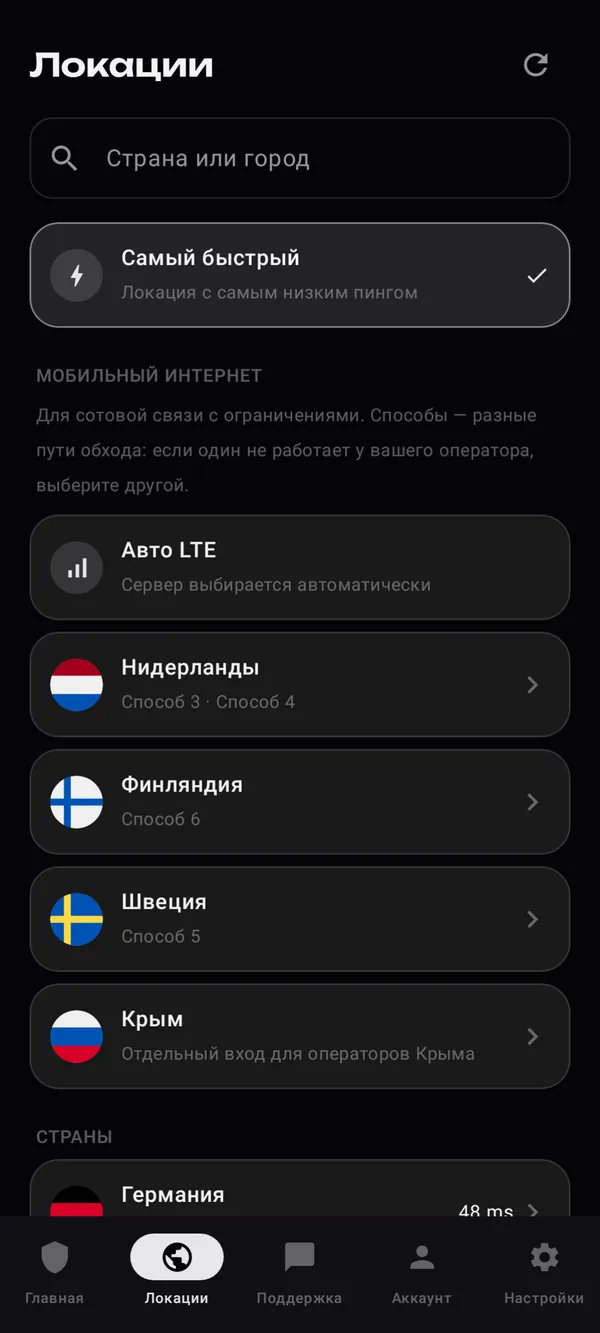
The «Locations» tab at the bottom, with a «Country or city» search and ping refresh at the top. «Fastest» comes first: the location with the lowest ping is picked for you.
- 2
Country and city
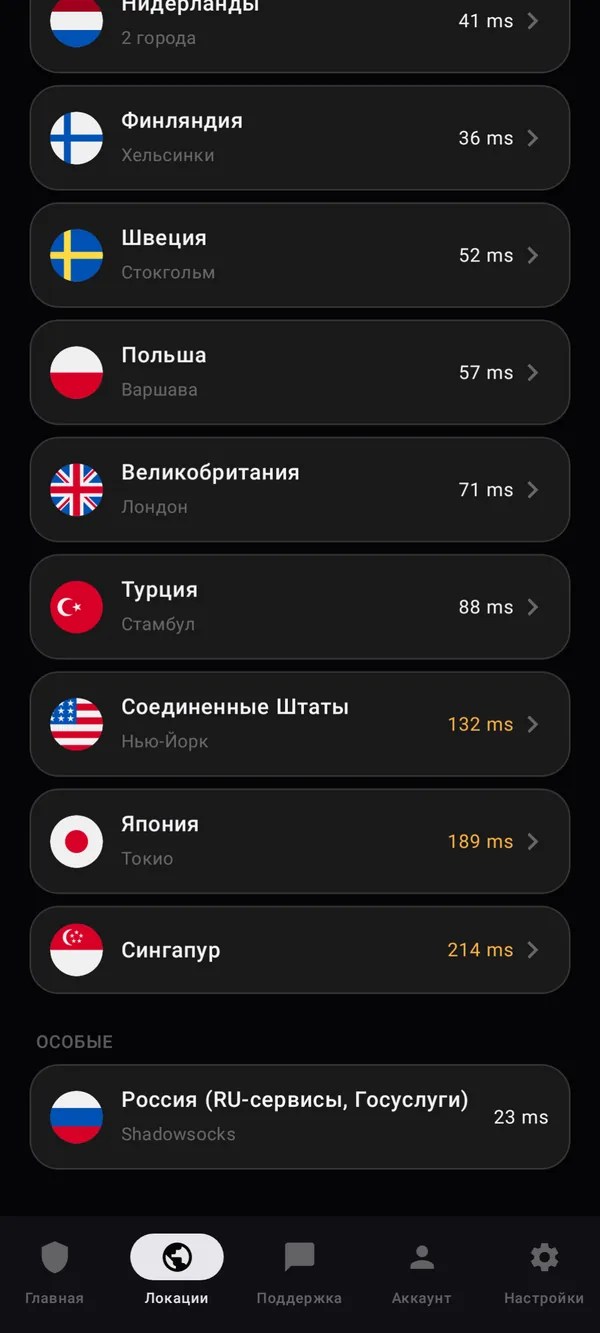
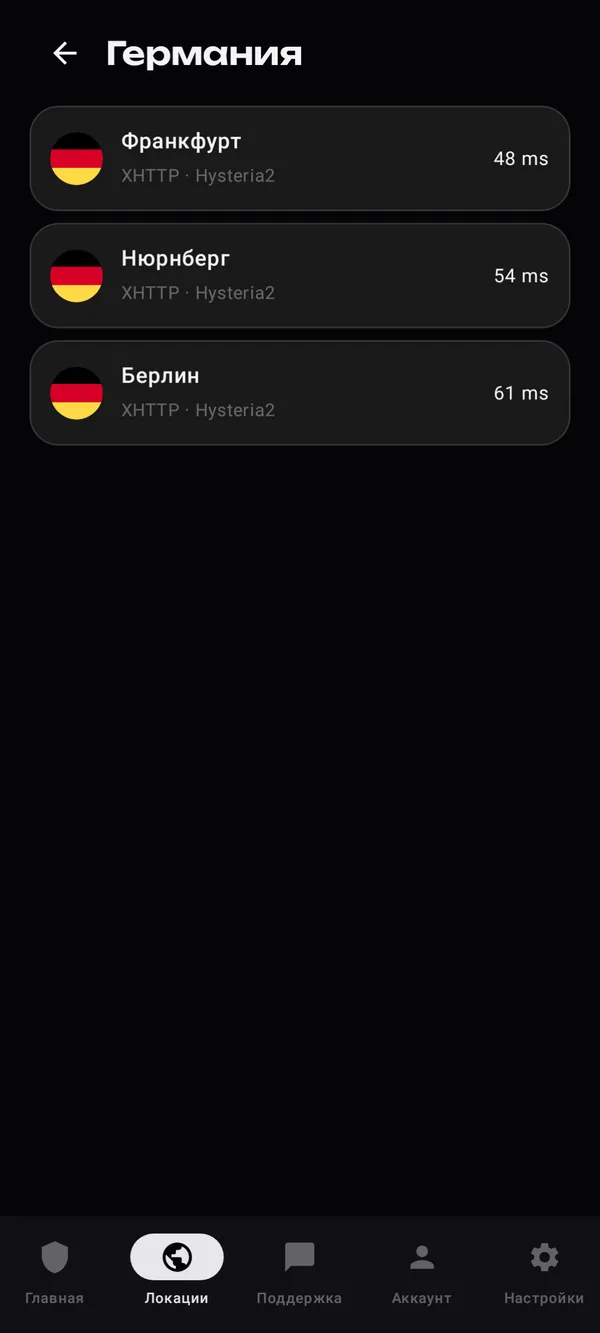
In «Countries», tap a country to see its cities with ping. If a country has only one city, there is no extra list.
- 3
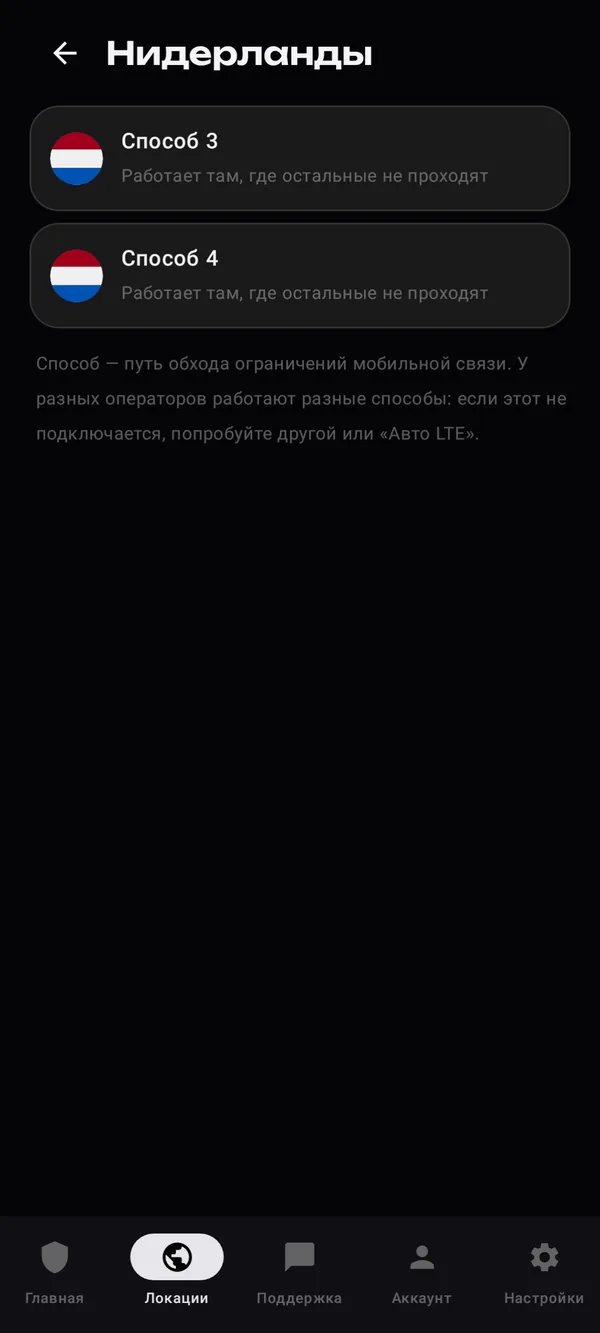
Mobile internet
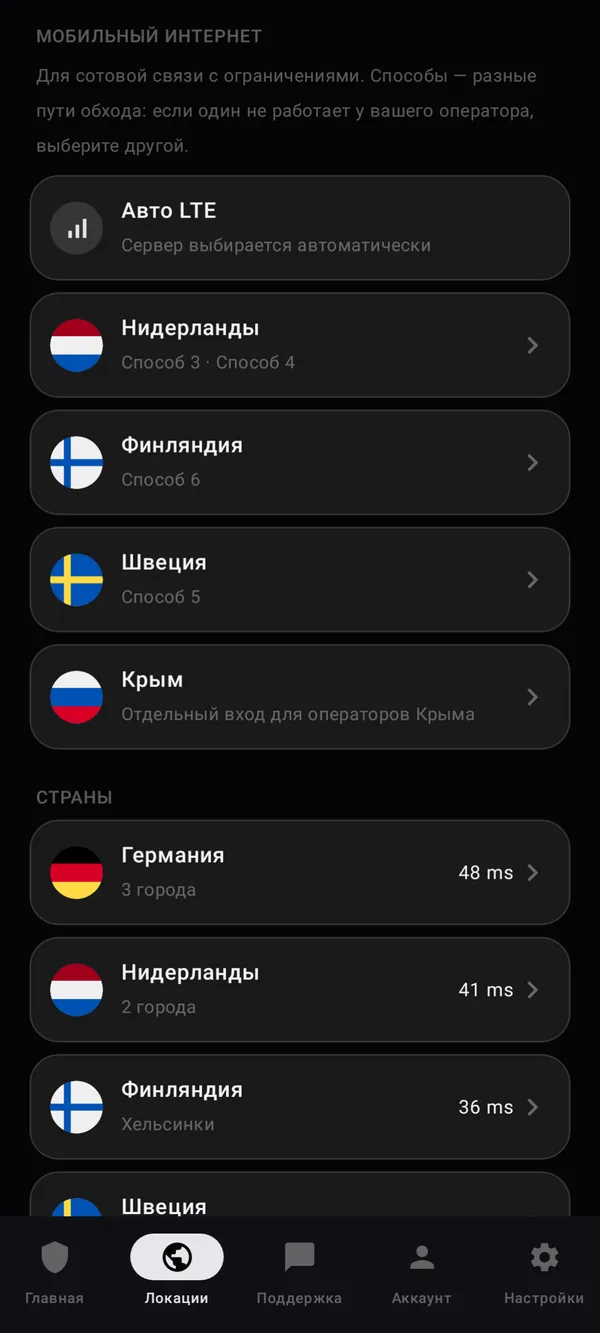
If your carrier restricts mobile internet and regular servers won't connect, open the «Mobile internet» section.
- «Auto LTE» picks a mobile internet entry for you.
- Entries are grouped by exit country, each with «Method 1», «Method 2» and so on. A method is a separate way around restrictions, and different carriers allow different ones. If one doesn't connect, try the next.
- «Crimea» is a separate entry for Crimean carriers. If you are in Crimea, the app shows it first.
infoAt home and on Wi-Fi, use the regular countries: the mobile internet section is only needed when your carrier restricts access.
- star
Special
The «Special» section has separate exits, for example a Russian server for Russian government and other RU services from abroad.
What is in the app
A quick look at each section.
- person
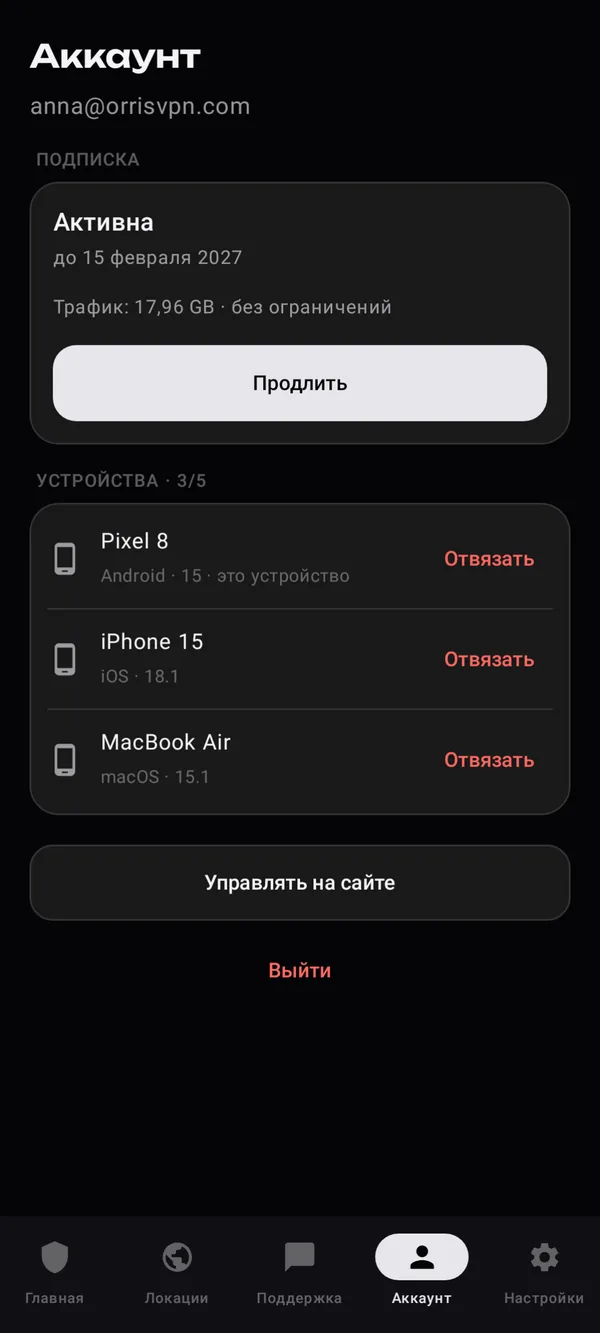
Account
Subscription, payment and devices:
- «Subscription» — status and expiry date;
- «Renew» — pick a plan and pay right in the app;
- «Devices» — where you are signed in; you can «Unlink» extra ones;
- «Manage on website» opens your account; «Sign out» is at the bottom.
- settings
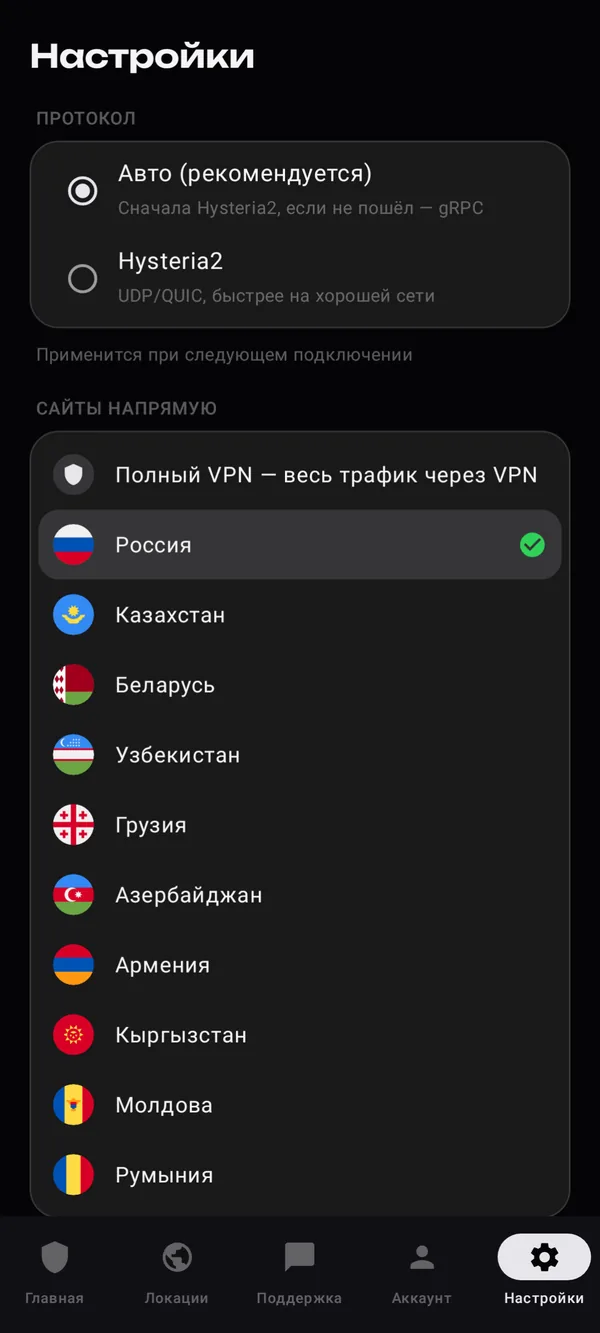
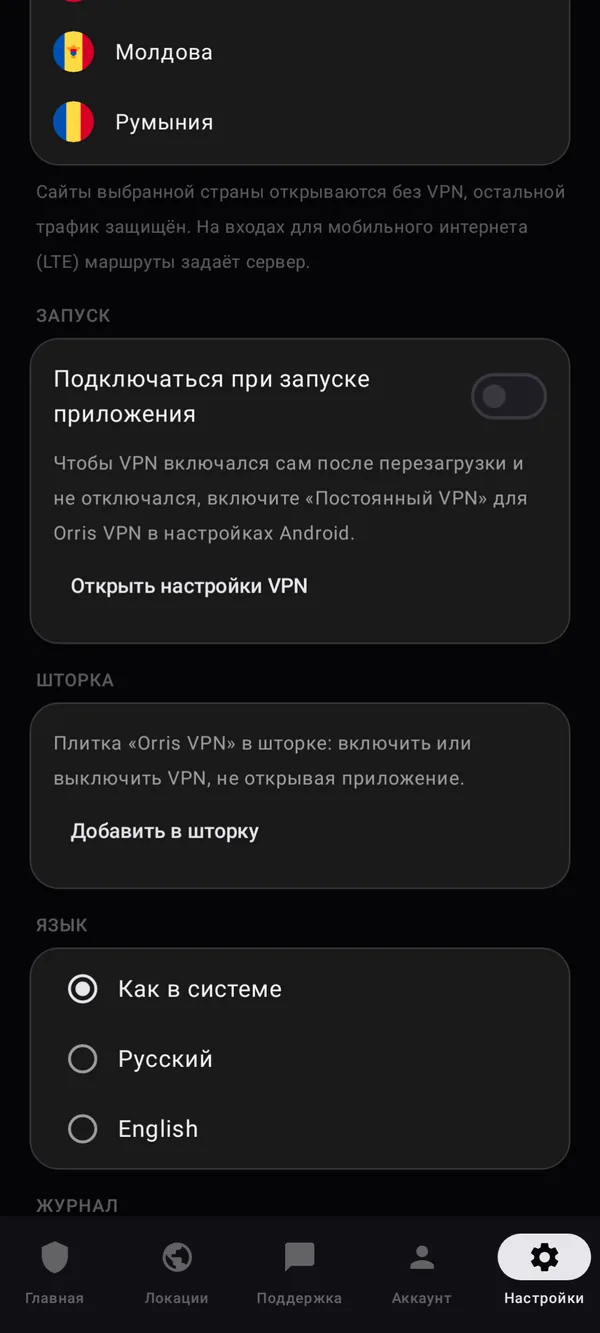
Settings
Everything you can adjust:
- «Protocol» — «Auto (recommended)», Hysteria2 or gRPC;
- «Direct sites» — the country whose sites open without the VPN, or «Full VPN»;
- «Startup» — «Connect when the app starts», plus an «Open VPN settings» button for Android's always-on VPN;
- «Quick Settings» and «Widget» — a tile and a home screen widget;
- «Language», «Log» and «About» with «Check for updates».
- widgets
Widget
«Settings» → «Widget» → «Add to home screen»: VPN status and a connect button.
- support_agent
Support
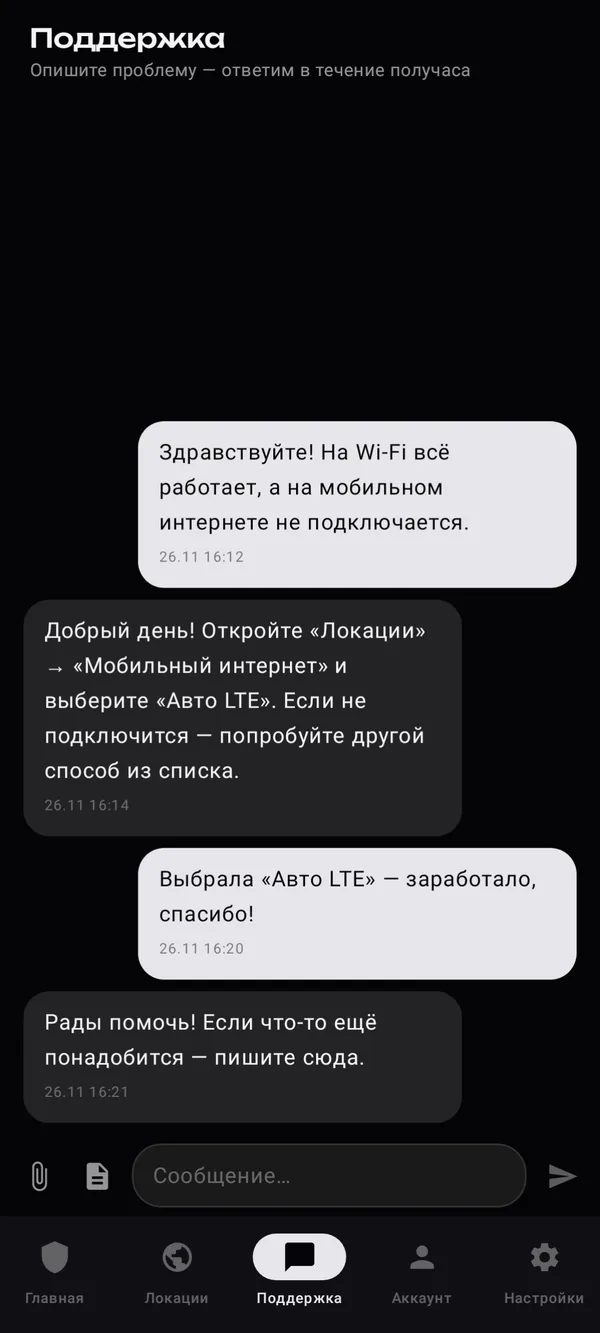
A support chat in the app: describe the problem and we'll reply within half an hour. You can attach a file or the connection log. The tab shows the number of new replies.
Regional Direct
The «Regional Direct | Full VPN» switch on the home screen. In the first mode, sites of the chosen country open without the VPN and everything else goes through it.
Quick settings tile
«Settings» → «Quick Settings» → «Add to Quick Settings». The «Orris VPN» tile turns the VPN on and off with one tap.
Always-on VPN
To have the VPN start by itself after a reboot, turn on always-on VPN for Orris VPN in Android settings. The «Open VPN settings» button is under «Startup».
Android TV
The same APK works on Android TV. Sign in with the QR code or the code on the screen.
Updates
- system_update
Updates inside the app
The app checks for updates by itself. When a new version is out, an «Update available» window appears with release notes and the «Update» and «Later» buttons. After «Update», the APK downloads inside the app and Android asks you to confirm the install.
infoThe first time, allow installs from Orris VPN: the app opens the right screen — turn the permission on and tap «Update» again. «Later» hides the window for a day; a required update can't be postponed.
Troubleshooting
Common situations and what to do.
It won't connectadd
Try another location or «Fastest». If that doesn't help, go to «Settings» → «Protocol» and pick another one. On mobile data, use the «Mobile internet» section.
It says Android didn't allow the VPNadd
Most likely another VPN app has always-on VPN turned on. Turn it off in Android settings under VPN and connect again.
My phone won't install the APKadd
Allow installs for the app you open the file with (your browser or Files) and open the APK again. If Play Protect warns you, tap «More details» → «Install anyway».
The update won't installadd
Allow installs from Orris VPN when the app opens the settings screen, then tap «Update» again. Still no luck? Download the latest APK on this page and install it over the old one: your account and settings stay.
Nothing loads on mobile dataadd
Open «Locations» → «Mobile internet» and choose «Auto LTE» or a method by hand. If a method doesn't work with your carrier, try another.
My subscription has endedadd
Renew it in your account on the website or in the Telegram bot, then connect again.
How many devices can I useadd
As many as your plan includes. Every device you sign in on takes a slot; you can unlink an old one in your account under «Devices».
Support
We answer in the chat, on Telegram and by email.
In-app chat
Open «Support» in Orris VPN and describe the problem. You can attach the connection log right in the chat.